Colocation
When performing evaluations of model data with observations, it is of high importance to ensure you are comparing apples with apples, rather than apples with oranges.
One way that evaluations can often be biased is due to gapped observations being compared with non-gapped model data. This can be resolved by ensuring both observational and model data is equally temporally gapped, called temporal colocation.
When loading multiple species, the number of available stations per species will most likely be different, therefore unless this is controlled for, this will lead to biases when comparing statistics across species. This can be resolved by ensuring only stations which are available for all species are retained, called spatial colocation.
The following sections explain how both these colcoation types can be applied in Providentia.
Temporal colocation
Temporal colocation is used to temporally pair observations and model data, with any missing measurements in either the observational or model array, imposing missing measurements on the other.
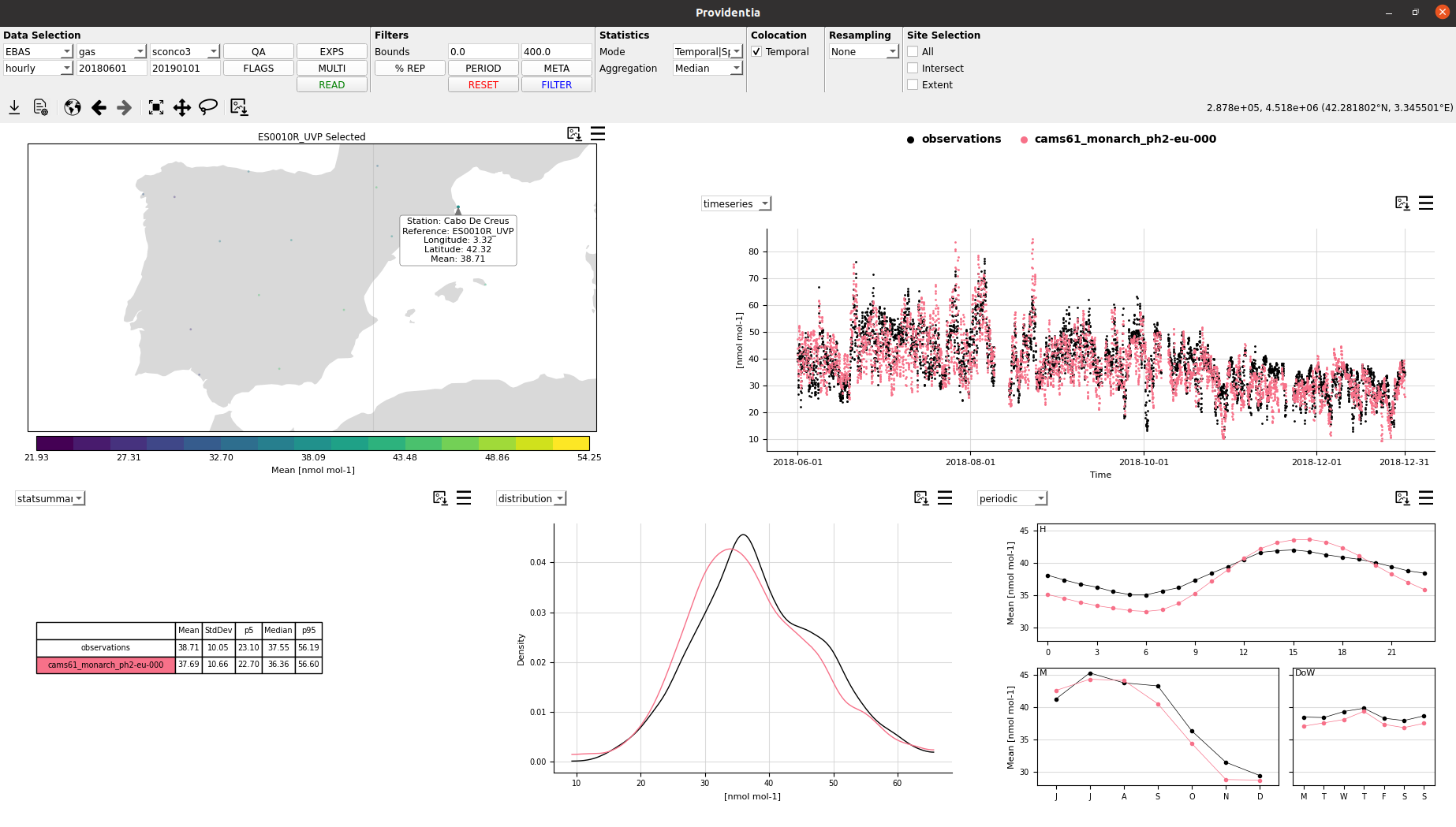
When temporal colocation is active, you will have access to more plot types (scatter, taylor, fairmode-target, and fairmode-statsummary). See here for more information about plot types. Additionally model bias statistics will also be available (e.g. r). See here for more information about available statistics.
Temporal colocation can be set in the configuration file by setting a boolean as follows, by default it is True:
temporal_colocation = False
On the dashboard it can be toggled by using the temporal coloction checkbox on the top menu bar.
Without temporal colocation:
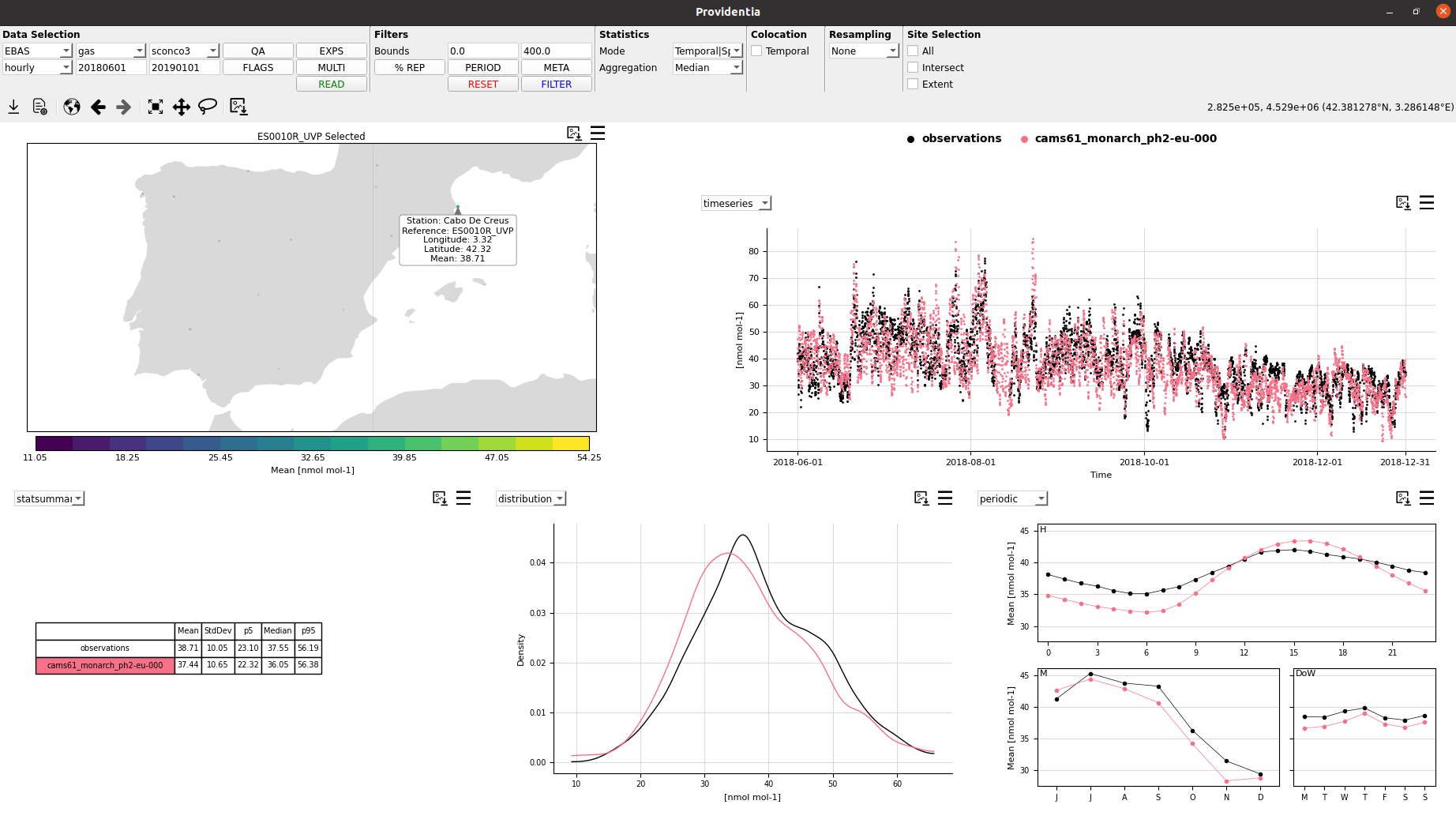
With temporal colocation:
Spatial colocation
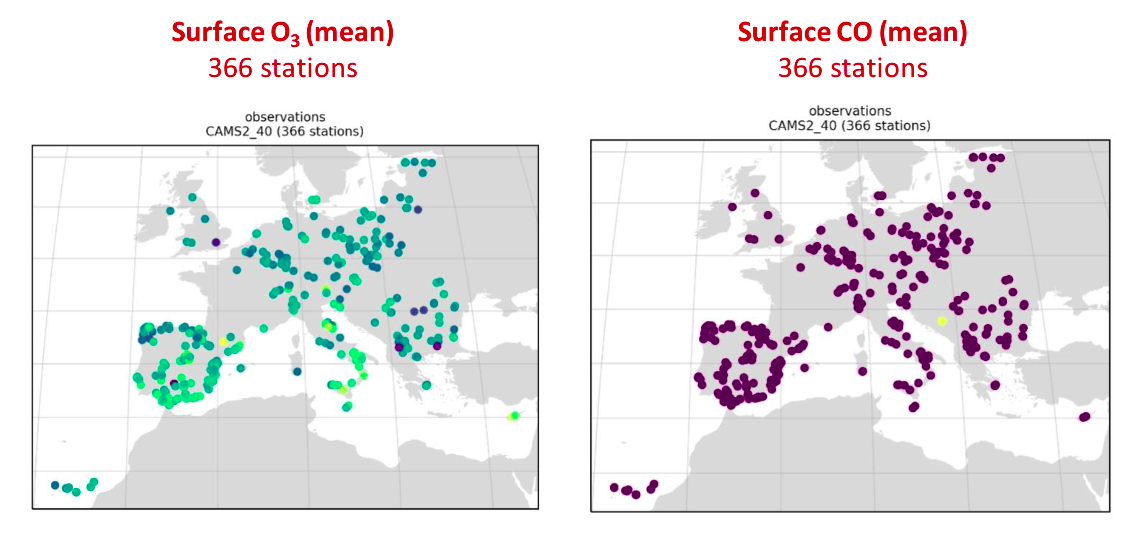
When loading more than one species you may want to ensure that the available stations measure data for all species that are to be loaded. To do this, we need to activate spatial colocation.
After activating spatial colocation, any stations that do not have valid data for any of the loaded species are dropped.
Spatial colocation can be set in the configuration file by setting a boolean as follows, by default it is True:
spatial_colocation = False
On the dashboard, only one species is allowed to be loaded at once, so in theory it should not be possible to use spatial colocation. However there is a workaround using filter_species if loading the dashboard from a configuration file or set under the SPECIES button on the menu bar if not. If we filter the one loaded species with one or multiple filter species as follows, not filtering by any data range, then the resultant stations will be same as when loading multiple species with spatial colocation active:
network = EBAS
species = sconco3
filter_species = EBAS:sconcno2 (:, :, nan)
spatial_colocation = True
See here for more information on multispecies filtering. spatial_colocation must also be set to be True for this to work.
Without spatial colocation:
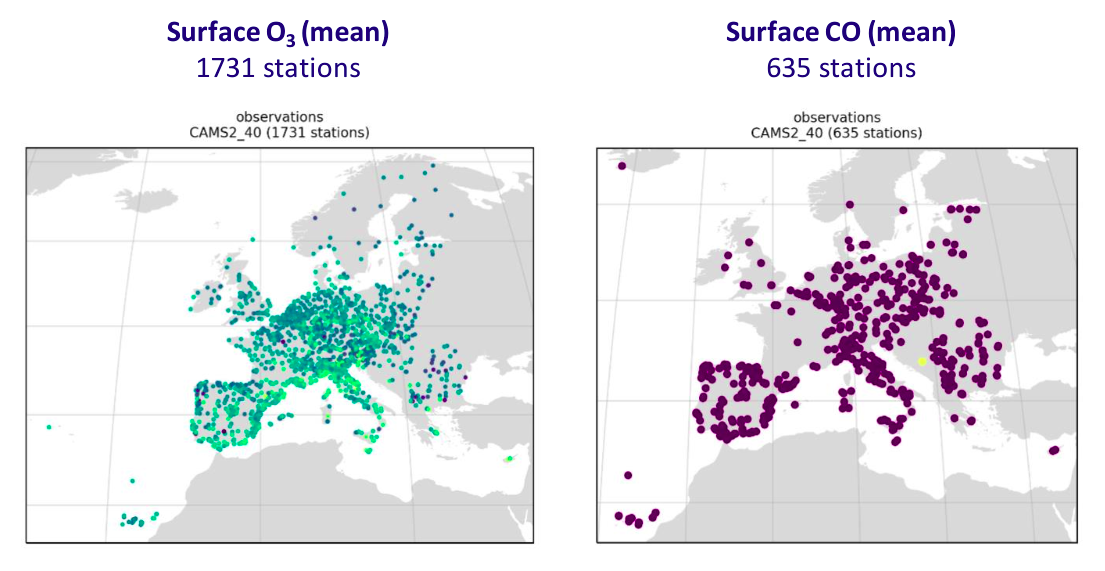
With spatial colocation: