Plot customisation
Editing the plots style
General edits
If you want to edit the style of your plots, you will need to edit the file settings/plot_characteristics.yaml. There you will find parameters per plot type, and within those, parameters for each of the available modes, as well as general ones that are applied to all modes.
Map coastline resolution
It is possible to customise the map coastline resolution by changing the map_coastline_resolution variable under the map section in the plot characteristics file.
There are 3 options as present:
low: 110m in resolutionmedium: 50m in resolution (default)high: 10m in resolution
Map background
Users can define the type of background that is plotted on the map. This can be set by changing the background variable under the map section.
There are 3 available standard options:
providentia: The standard white and grey combination that has been historically available (default)blue_marble: NASA’s blue marble productshaded_relief: Imagery showing changes in elevation
Users can easily add any type of background by putting an image file in the providentia/dependencies/resources folder, with the filename named in the same way as in the plot characteristics file, e.g. blue_marble.png and "background": "blue_marble".
Custom colorbars
Users can define the color and bounds of the colorbar (cmap, vmin and vmax) per species using a dictionary, with the keys being the names of the species inside basic_stats.yaml and model_bias_stats.yaml. An example can be seen in the code below:
"Mean":        {"function": "calculate_mean",
                "order": 0,
                "label": "Mean",
                "arguments": {},
                "units": "[measurement_units]",
                "minimum_bias": [0.0],
                "vmin_absolute": {"sconco3": 0, "sconcno2": 0},
                "vmax_absolute": {"sconco3": 20, "sconcno2": 5},
                "vmin_bias": {},
                "vmax_bias": {},
                "cmap_absolute": "viridis",
                "cmap_bias": "RdYlBu_r"},
If they define the cmap, they will need to give a complete list of cmap options for each of the species that they load or otherwise a warning will appear. For vmin and vmax, they can define the bounds for some species and the rest will take the data minimum and maximum values.
Removing extreme stations by their statistical values
If you want to automatically remove stations that have certain statistical values, you will need to add your criteria in the file settings/remove_extreme_stations.yaml. An example of this exists for CAMS:
"CAMS": {"r": ["<0.3"],
         "NMB": ["<-100.0", ">100.0"],
         "NRMSE": [">100.0"]}
The statistics can be general, across all components or they can be specific per component, for example:
"CAMS": {"r": {"sconco3": ["<0.3"],
               "sconcno2":[<0.55]},
        "NMB": {"sconco3": ["<-100.0", ">100.0"],
                "sconcno2": ["<-20.0", ">20.0"]},
        "NRMSE": {"sconco3": [">100.0"],
                  "sconcno2":[">200.0"]}}
Any absolute statistic can be set to be a bias statistic by adding _bias e.g.:
"p95_bias": ["<10",">20"]
You will also need to add the variable remove_extreme_stations in your configuration file, referencing the group of statistics to filter by that you defined, e.g. CAMS:
remove_extreme_stations=CAMS
Calculating exceedances
In Providentia the exceedances statistic is available in the list of available statistics. How it is currently implemented is simplistic, but users can simply state a threshold/limit value per component or network-component pair, and each instance where values exceed this limit will be counted. Therefore the exceedances statistic simply gives the number of instances above the threshold. The threshold values can be set in the file settings/exceedances.yaml per component or network-component pair, as so:
sconco3: {
    "units": "nmol mol-1",
    "value": 30.07
},
EBAS|sconcno2: {
    "units": "nmol mol-1",
    "value": 5.23
}
In the case a threshold is set for a specific component, and per network-component, then the threshold for network-component is taken preferentially.
Dashboard interactive features
Changing the plot style
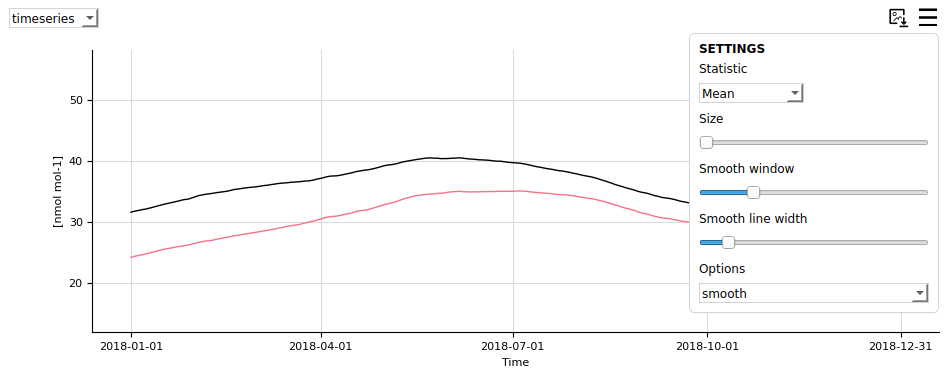
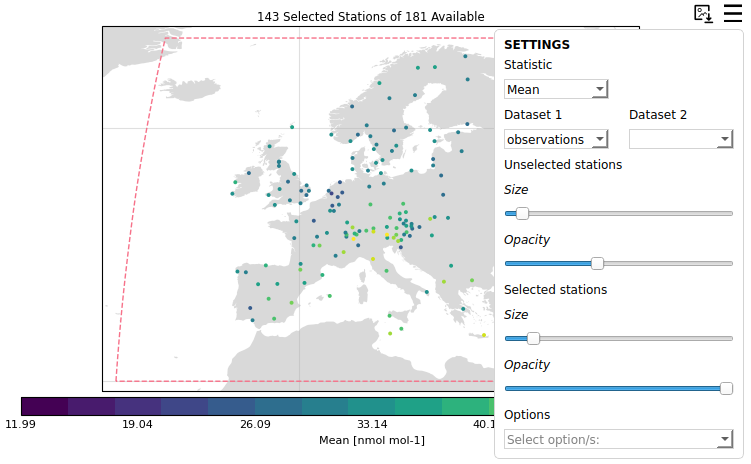
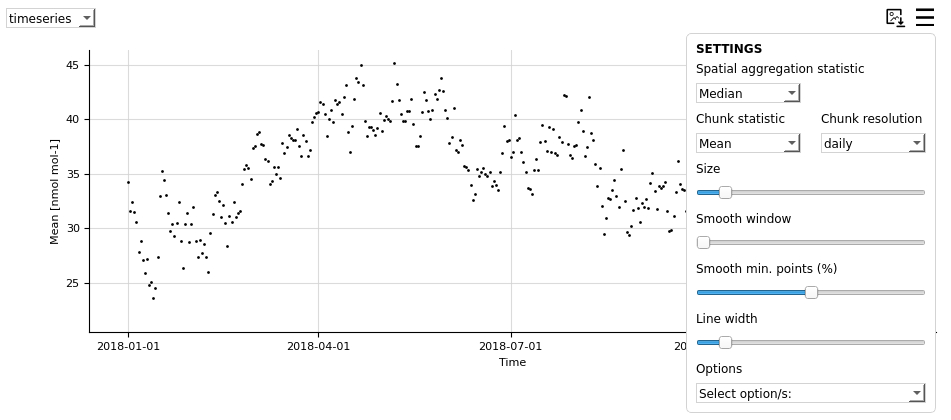
The style of the plots can be edited by clicking on the burger menus and changing the settings.
Legend picking
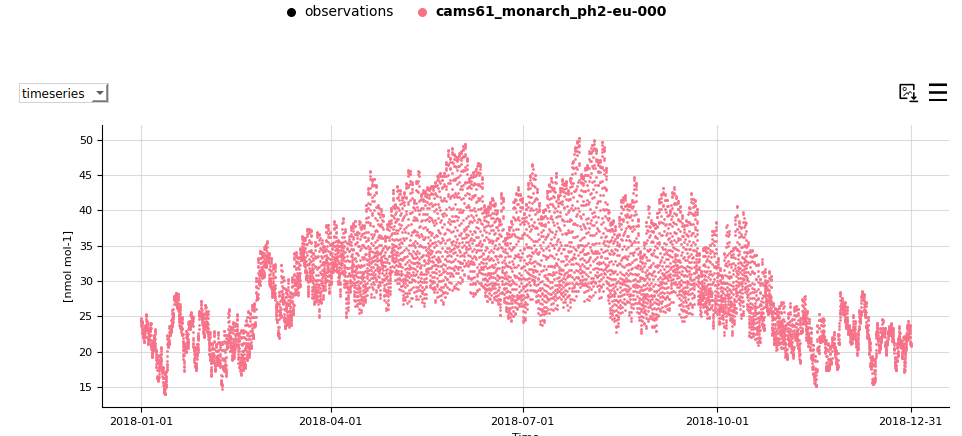
Clicking on the legend labels will remove or add data to each of the plots. If the label appears in bold, the data will be visible. If not, it will be hidden.
Changing the statistics
The statistics in the statsummary can be updated from the burger menu.
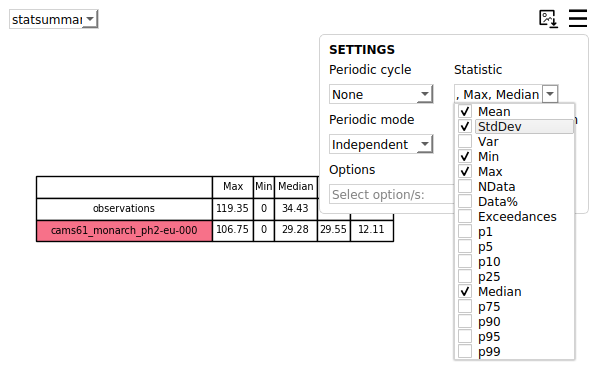
This can also be applied in the timeseries plot by selecting the chunk statistic and temporal resolution.
Information on hover
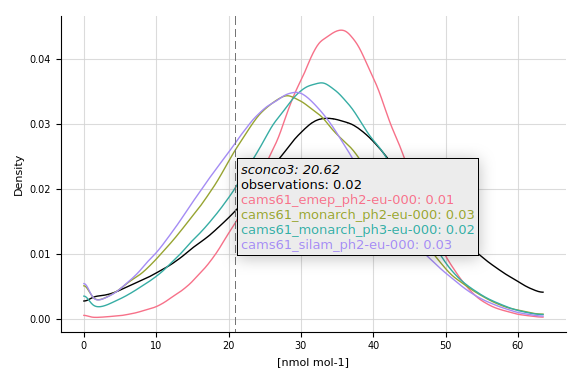
Most plots show information when hovering over them. Take a look for instance at the distribution plot:
Smoothing
It is possible to add a smoothing line to the timeseries plot and make the points disappear. In order to achieve this, you will need to increase the smooth window, which by default is 0 and bring the marker size down to 0. You can also use the plot option hidedata to hide the points.